Backup and restore
Everything OpenConsole stores is on one volume, mounted at /data:
| Path | What |
|---|---|
/data/app.db | the SQLite database: users, groups, roles, clusters and their credentials, settings, sessions, API keys (hashed), saved views, restart history, the audit log |
/data/backups/ | copies of the database OpenConsole makes itself (below) |
/data/recordings/ | pod shell recordings (.cast files) |
:::danger Treat a backup like a secret A backup holds the users, the audit log and, encrypted, the cluster tokens, LDAP and Prometheus passwords and the Azure AD client secret. Unless you keep the encryption key out of the database, the key is in the same file, so anyone with a copy can read them. Recordings may hold whatever someone printed in a shell. Store backups encrypted, with access as tight as the clusters themselves. :::
Automatic backups
OpenConsole copies its database into /data/backups with SQLite's VACUUM INTO, a consistent copy made while it
keeps running (backup.go):
- every
BACKUP_INTERVAL(default24h;0turns the schedule off), counted from the newest copy, so a restart neither skips nor repeats one; - before a new version changes the database, as
app-<time>-pre-upgrade.db; - when an admin clicks Back up now in Admin → Backups.
The newest BACKUP_KEEP copies (default 7, all kinds together) are kept; the files are app-<UTC time>[-tag].db,
readable by the server's user only. Recordings are not in them. Each copy, scheduled ones too, is a backup.create
audit event. Admin → Backups lists them with size and time and warns while the key is in the database.
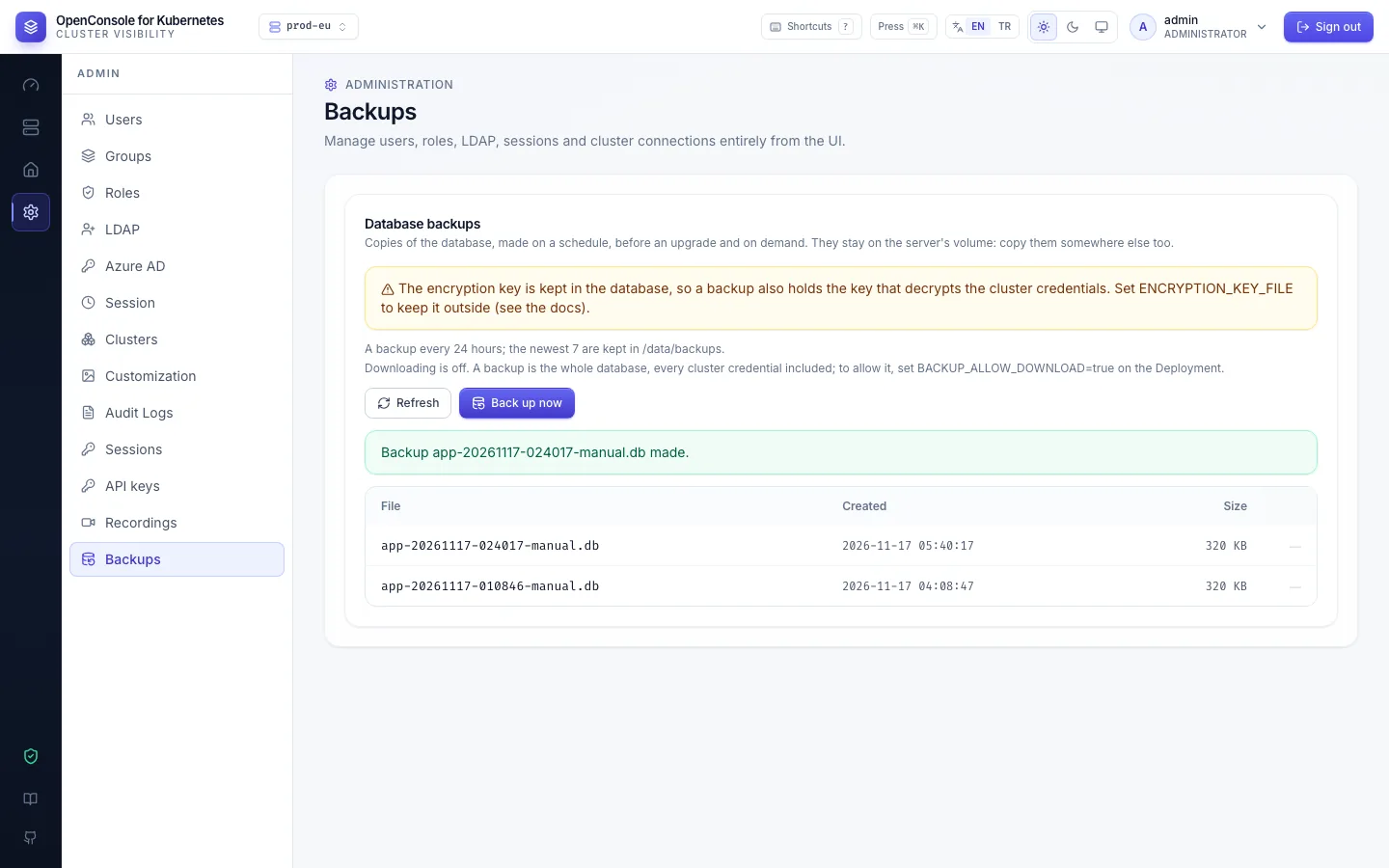
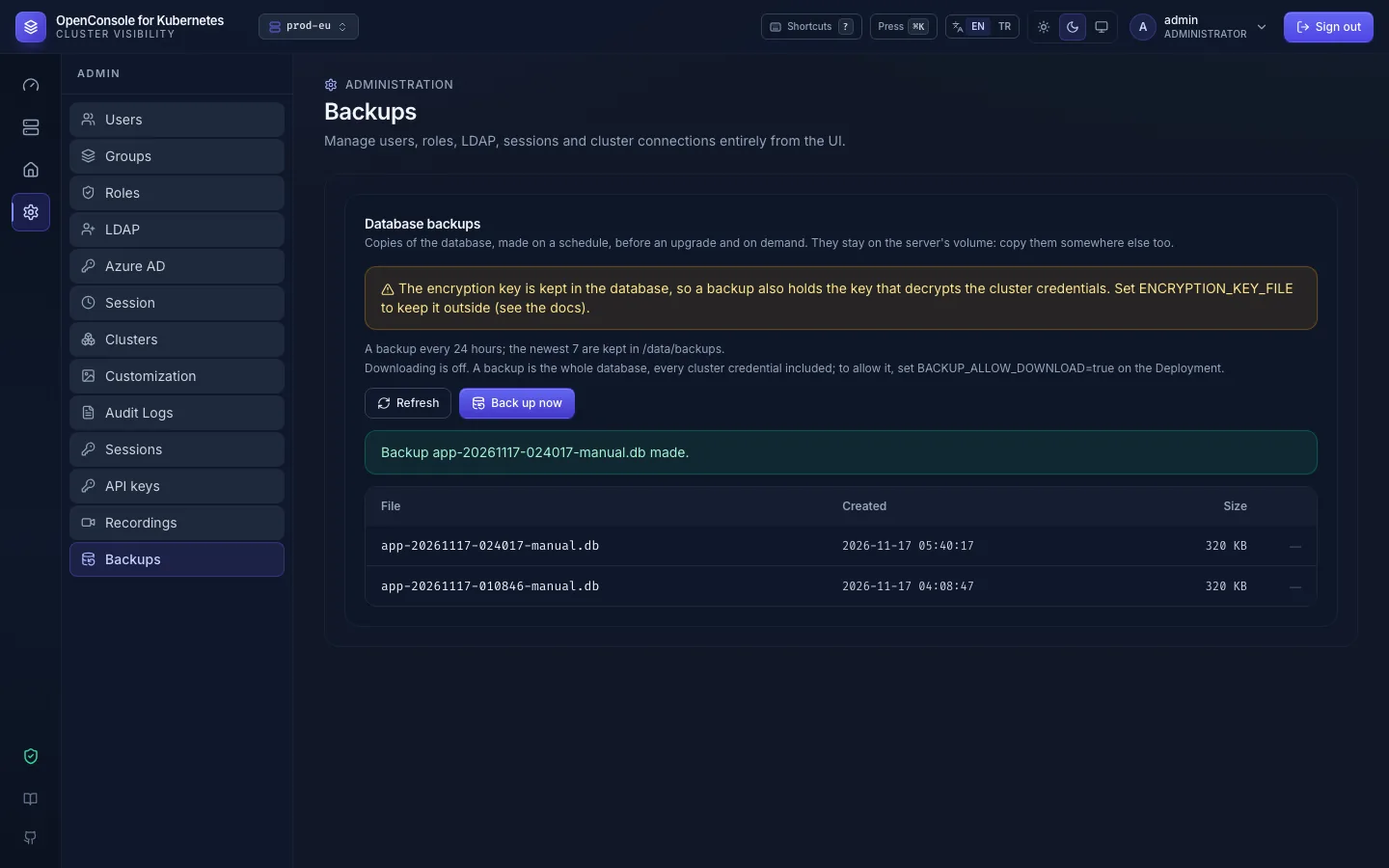
These copies are on the same volume: they help after a bad upgrade or a mistake, not when the volume is lost. Copy them somewhere else.
Downloading backups
Downloading is off by default. It is turned on with BACKUP_ALLOW_DOWNLOAD=true on the Deployment, not in the UI,
so an admin account alone (or a stolen admin session) can't turn it on: whoever may change the Deployment can read
the volume anyway. Setting it restarts the pod:
kubectl -n kubernetes-openconsole set env deploy/kubernetes-openconsole BACKUP_ALLOW_DOWNLOAD=true # off again: BACKUP_ALLOW_DOWNLOAD-
While it is on, every admin can download every copy, older ones included. Each download is a backup.download
audit event, and so is a refused one (denied, backup_download_disabled). An API key never downloads a backup.
Copy a backup off the volume
- In the browser: Admin → Backups → the download icon, when
BACKUP_ALLOW_DOWNLOAD=true. - With kubectl, without stopping the console. The image has no shell, so attach a short-lived debug container
that shares the pod's processes, and read the file through the app's own filesystem (
/proc/1/root):
NS=kubernetes-openconsole
POD=$(kubectl -n $NS get pod -l app=kubernetes-openconsole -o jsonpath='{.items[0].metadata.name}')
kubectl -n $NS debug -q -i $POD --image=busybox:1.36 --target=dashboard -- ls -l /proc/1/root/data/backups
kubectl -n $NS debug -q -i $POD --image=busybox:1.36 --target=dashboard -- \
  cat /proc/1/root/data/backups/app-20261115-020000.db > app-20261115-020000.db
sqlite3 app-20261115-020000.db 'PRAGMA integrity_check'   # ok
Each call adds an ephemeral container to the pod; they are listed until the pod is replaced. It needs the
pods/ephemeralcontainers permission in the namespace. kubectl warns that the pod runs as a non-root user; the
copy works anyway. sqlite3 runs on your machine, not in the pod.
- A volume snapshot (CSI
VolumeSnapshot) of the PVC, if your storage supports it.
Back up the whole volume
To copy everything, recordings included, stop the app for a moment and read the volume from a short-lived helper pod. The console is unavailable for about a minute.
NS=kubernetes-openconsole
kubectl -n $NS scale deploy/kubernetes-openconsole --replicas=0
kubectl -n $NS wait --for=delete pod -l app=kubernetes-openconsole --timeout=120s

kubectl -n $NS run oc-backup --restart=Never --image=alpine:3.20 \
  --overrides='{"spec":{"securityContext":{"runAsNonRoot":true,"runAsUser":65532,"runAsGroup":65532,"fsGroup":65532,"seccompProfile":{"type":"RuntimeDefault"}},"containers":[{"name":"oc-backup","image":"alpine:3.20","command":["sleep","3600"],"securityContext":{"allowPrivilegeEscalation":false,"capabilities":{"drop":["ALL"]}},"volumeMounts":[{"name":"data","mountPath":"/data"}]}],"volumes":[{"name":"data","persistentVolumeClaim":{"claimName":"kubernetes-openconsole-data"}}]}}'
kubectl -n $NS wait --for=condition=Ready pod/oc-backup --timeout=120s

kubectl -n $NS exec oc-backup -- tar czf - -C /data . > openconsole-backup-$(date +%Y%m%d-%H%M).tgz

kubectl -n $NS delete pod oc-backup --wait=false
kubectl -n $NS scale deploy/kubernetes-openconsole --replicas=1
- The helper runs as the same non-root user as the app, so it passes a
restrictedPod Security level. - To leave the recordings out (they can be gigabytes), use
tar czf - -C /data --exclude=./recordings .. - Check the archive:
tar tzvf openconsole-backup-*.tgzlists./app.dband./recordings/.
A volume snapshot (CSI VolumeSnapshot) of the PVC is an alternative if your storage supports it; take it while the
Deployment is scaled to 0, as above.
Restore
Restoring replaces everything on the volume with the backup. It works into the same installation (lost or broken volume) or into a new one (another namespace or cluster).
- Have an installation to restore into. For the same namespace, the existing one. For a new one, install
OpenConsole first (Install on Kubernetes); in another namespace of the same
cluster, leave out
rbac.yaml(list the files, as shown there): the ServiceAccount and ClusterRole are cluster-wide and the restored database already holds the original token. - Copy the backup onto its volume (set
NSto the namespace you restore into):
NS=kubernetes-openconsole
BACKUP=openconsole-backup-20261113-2327.tgz

kubectl -n $NS scale deploy/kubernetes-openconsole --replicas=0
kubectl -n $NS wait --for=delete pod -l app=kubernetes-openconsole --timeout=120s

kubectl -n $NS run oc-backup --restart=Never --image=alpine:3.20 \
  --overrides='{"spec":{"securityContext":{"runAsNonRoot":true,"runAsUser":65532,"runAsGroup":65532,"fsGroup":65532,"seccompProfile":{"type":"RuntimeDefault"}},"containers":[{"name":"oc-backup","image":"alpine:3.20","command":["sleep","3600"],"securityContext":{"allowPrivilegeEscalation":false,"capabilities":{"drop":["ALL"]}},"volumeMounts":[{"name":"data","mountPath":"/data"}]}],"volumes":[{"name":"data","persistentVolumeClaim":{"claimName":"kubernetes-openconsole-data"}}]}}'
kubectl -n $NS wait --for=condition=Ready pod/oc-backup --timeout=120s

kubectl -n $NS exec oc-backup -- sh -c 'rm -rf /data/*'
kubectl -n $NS exec -i oc-backup -- tar xzf - -C /data < "$BACKUP"
kubectl -n $NS exec oc-backup -- ls -la /data

kubectl -n $NS delete pod oc-backup --wait=false
kubectl -n $NS scale deploy/kubernetes-openconsole --replicas=1
kubectl -n $NS rollout status deploy/kubernetes-openconsole --timeout=5m
- Sign in with an account from the backup (the passwords are the ones at the time of the backup). The clusters, users, roles and audit log are back.
A backup from an older release can be restored into a newer one: the newer version upgrades the database on start (checked: a 2.21.0 backup restored into 2.22.0). The other way round is not supported (Upgrading).
If the restored installation reaches the clusters with tokens that were rotated after the backup, replace them in Admin → Clusters.
Restore one database copy
A copy from /data/backups (for example the pre-upgrade one) or one you copied off replaces only the database;
recordings stay as they are:
NS=kubernetes-openconsole
COPY=app-20261115-020000.db

kubectl -n $NS scale deploy/kubernetes-openconsole --replicas=0
kubectl -n $NS wait --for=delete pod -l app=kubernetes-openconsole --timeout=120s

kubectl -n $NS run oc-backup --restart=Never --image=alpine:3.20 \
  --overrides='{"spec":{"securityContext":{"runAsNonRoot":true,"runAsUser":65532,"runAsGroup":65532,"fsGroup":65532,"seccompProfile":{"type":"RuntimeDefault"}},"containers":[{"name":"oc-backup","image":"alpine:3.20","command":["sleep","3600"],"securityContext":{"allowPrivilegeEscalation":false,"capabilities":{"drop":["ALL"]}},"volumeMounts":[{"name":"data","mountPath":"/data"}]}],"volumes":[{"name":"data","persistentVolumeClaim":{"claimName":"kubernetes-openconsole-data"}}]}}'
kubectl -n $NS wait --for=condition=Ready pod/oc-backup --timeout=120s

# a copy still on the volume (e.g. the pre-upgrade one):
kubectl -n $NS exec oc-backup -- cp /data/backups/$COPY /data/app.db
# or one from your machine:
#   kubectl -n $NS cp $COPY oc-backup:/data/app.db
kubectl -n $NS exec oc-backup -- rm -f /data/app.db-wal /data/app.db-shm

kubectl -n $NS delete pod oc-backup --wait=false
kubectl -n $NS scale deploy/kubernetes-openconsole --replicas=1
kubectl -n $NS rollout status deploy/kubernetes-openconsole --timeout=5m
A copy made after the key was moved out of the database needs the same ENCRYPTION_KEY_FILE.
Keep the encryption key out of the database
By default the key that encrypts the stored credentials is in the database itself. Keep it in a Kubernetes Secret instead, so that a copy of the database (a backup, a snapshot) doesn't reveal the credentials on its own (keys.go).
- Create the key and the Secret. Keep
openconsole.keysomewhere safe outside the cluster too: without it the stored credentials are lost.
openssl rand -base64 32 > openconsole.key
kubectl -n kubernetes-openconsole create secret generic openconsole-encryption-key --from-file=key=openconsole.key
- Mount it and set
ENCRYPTION_KEY_FILE, with a patch in yourkustomization.yaml(Install on Kubernetes):
  - target: {kind: Deployment, name: kubernetes-openconsole}
    patch: |-
      - op: add
        path: /spec/template/spec/volumes/-
        value: {name: encryption-key, secret: {secretName: openconsole-encryption-key, defaultMode: 0440}}
      - op: add
        path: /spec/template/spec/containers/0/volumeMounts/-
        value: {name: encryption-key, mountPath: /etc/openconsole/key, readOnly: true}
      - op: add
        path: /spec/template/spec/containers/0/env/-
        value: {name: ENCRYPTION_KEY_FILE, value: /etc/openconsole/key/key}
- Apply it. The next start re-encrypts every stored value with the new key in one transaction, deletes the key from the database and rewrites the file, and signs sessions with a key derived from the new one, so everyone signs in once more:
kubectl apply -k .
kubectl -n kubernetes-openconsole logs deploy/kubernetes-openconsole | grep 'moved to the encryption key'
Copies made before, including the pre-upgrade one, still hold the old key and open the credentials; they are
replaced after BACKUP_KEEP new ones. If a value can't be decrypted, the start stops with the error in the log
and nothing changes (Troubleshooting).
Rotate the key
Put the new key and the old one in the Secret, start once with ENCRYPTION_KEY_PREVIOUS_FILE, then remove it.
Everyone signs in again.
openssl rand -base64 32 > openconsole-new.key
kubectl -n kubernetes-openconsole create secret generic openconsole-encryption-key \
  --from-file=key=openconsole-new.key --from-file=previous=openconsole.key --dry-run=client -o yaml | kubectl apply -f -
kubectl -n kubernetes-openconsole set env deploy/kubernetes-openconsole ENCRYPTION_KEY_PREVIOUS_FILE=/etc/openconsole/key/previous
kubectl -n kubernetes-openconsole rollout status deploy/kubernetes-openconsole --timeout=5m
kubectl -n kubernetes-openconsole set env deploy/kubernetes-openconsole ENCRYPTION_KEY_PREVIOUS_FILE-
If the key is lost
The values encrypted with it can't be recovered. Create a new key and Secret as above and start once with
ENCRYPTION_KEY_LOST=true (kubectl -n kubernetes-openconsole set env deploy/kubernetes-openconsole ENCRYPTION_KEY_LOST=true): the values that can't be decrypted are emptied, each one logged. Remove the variable
again (ENCRYPTION_KEY_LOST-), then enter the cluster credentials (Admin → Clusters → Edit), the LDAP bind
password and the Azure AD client secret again.