Choosing a cluster and namespace
You want to: look at another cluster or another namespace.
Your cluster
The cluster you work on is in the header. Click it, or press c:
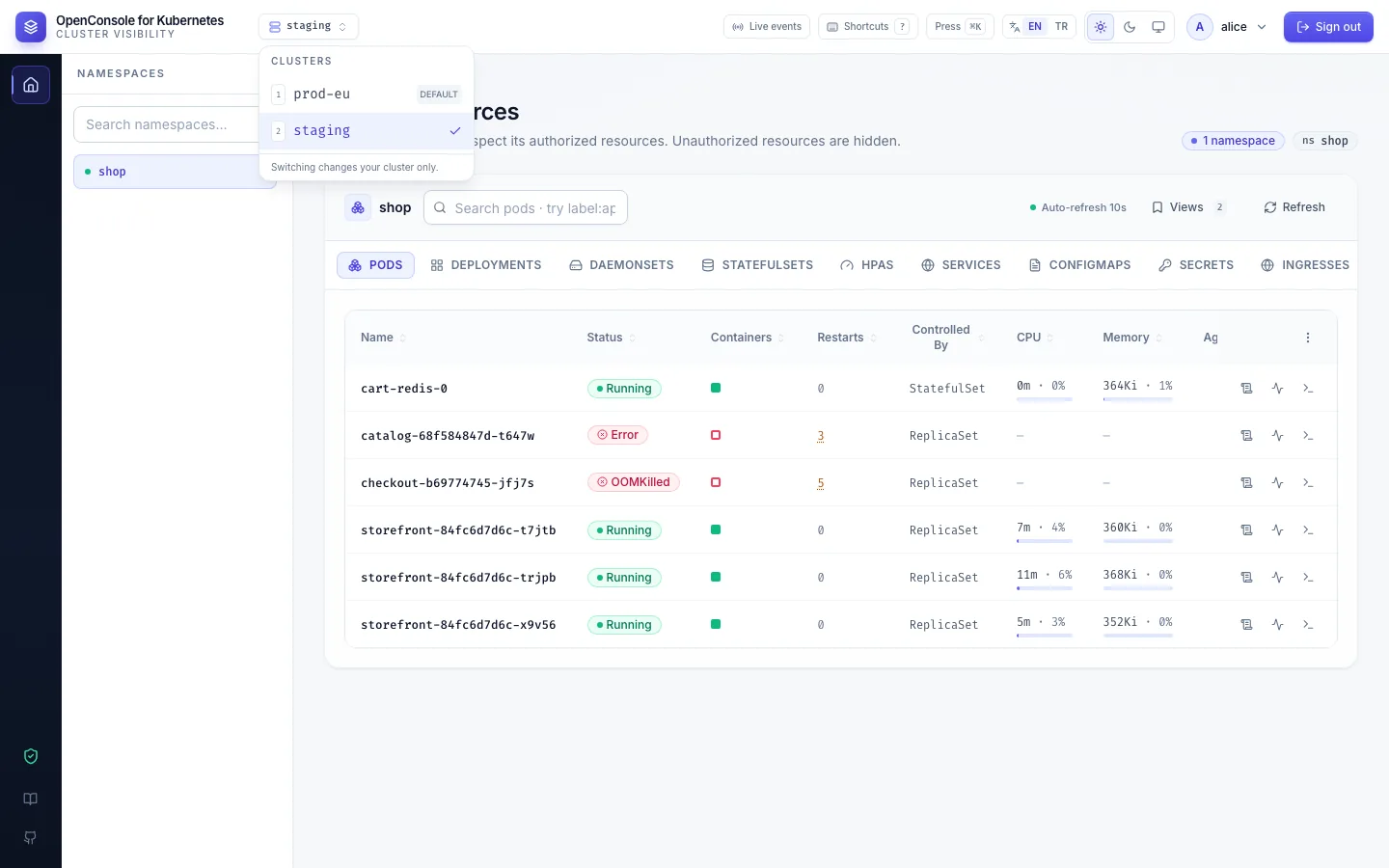
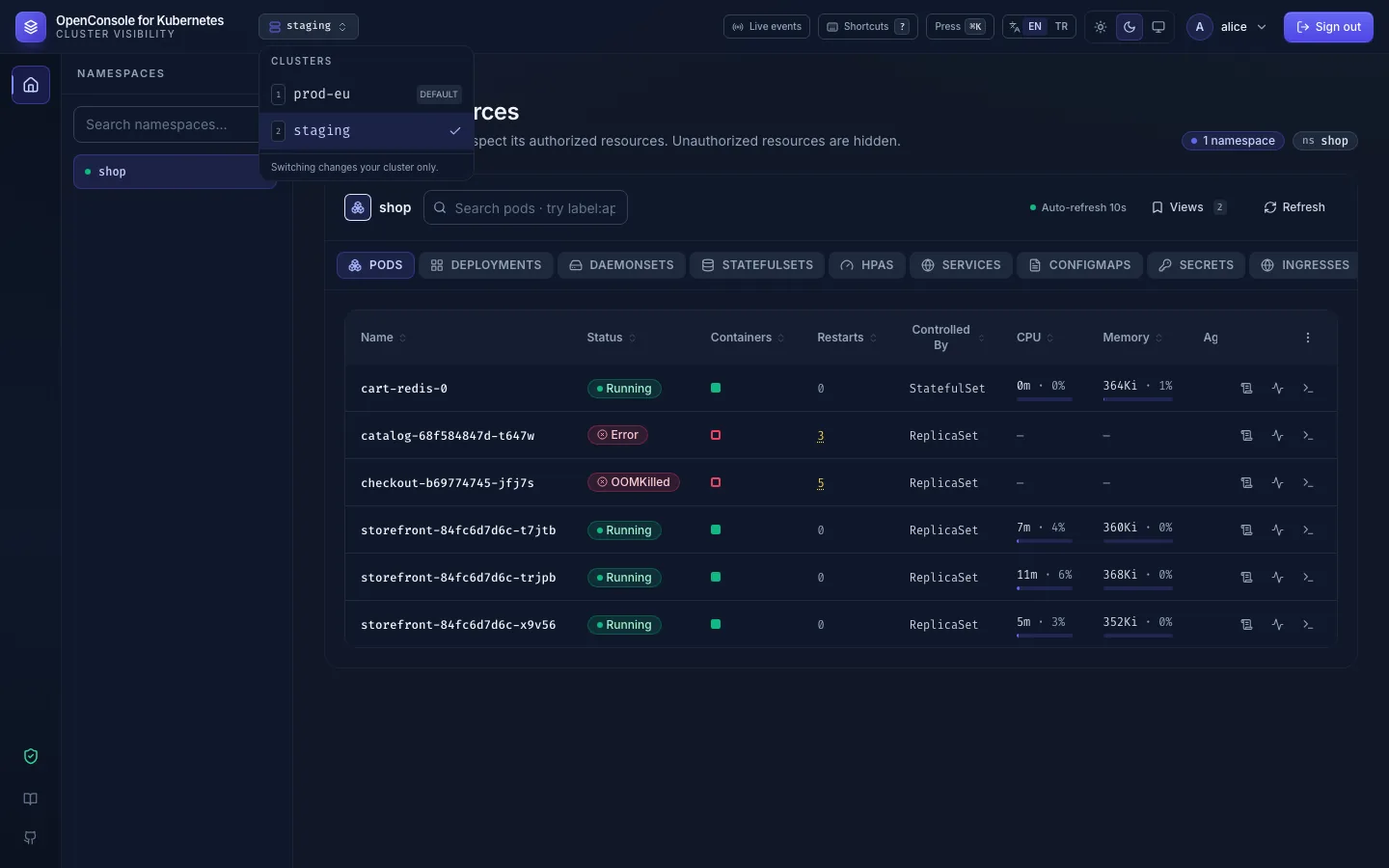
- The list has the clusters your permissions cover. The one marked default is where you start until you pick another.
- Picking a cluster switches only you. OpenConsole remembers it, on every device you sign in from.
- Each browser tab keeps working on the cluster it shows. If you pick another cluster in a second tab, the first one says so (staging was selected in another tab. This tab still works on prod-eu.) and its actions still go to prod-eu; Switch to staging follows, Stay on prod-eu closes the note. A reloaded tab opens on your latest pick.
- In the open list,
1–9pick by position,↑/↓move andEnterselects. - Every action you take is recorded with the cluster it ran on.
If your cluster is removed, or you lose every permission on it, you are moved back to the default (a tab open on it shows an error until you reload it).
Your namespaces
The left panel lists the namespaces of the current cluster in which you hold at least one permission. Others
are not shown at all, not even their names. Type in the filter above the list (or press n) to narrow it down.
OpenConsole remembers the namespace you picked.
The tabs at the top of the Dashboard (Pods, Deployments, …, Secrets) also follow your permissions: you see a tab only if you may list that kind of object in this namespace.
Your permissions decide all three. Ask your admin for a role that grants list on what you need, naming the
cluster and namespace, for example "pods:list and pods:logs in shop on prod-eu". Changes apply on your
next click; you don't have to sign in again.